Before you can vibe-code, you need the right setup. This isn’t the building part yet—that’s next time. This is the scaffolding that makes building possible.
I’ll show you the exact rules I use to keep AI on track. The documentation structure that prevents chaos. The guardrails that turn unreliable AI into something you can actually work with.
You’ll see why I set things up this way. What problems each rule solves. How they work together to create consistency.
Then, once you understand the system, you’ll be ready to build.
Setting Up Your Workspace
This approach works with Cursor, Replit, Bolt, or Claude (the web/mobile app). The process is similar across all platforms, with minor differences in where you put your rules.
Step 1: Create Your Project
Start every project the same way. Create a new workspace or project. Add a docs folder. Drop your PRD inside.
Step 2: Add Your Rules
Rules tell the AI how to behave. They’re just Markdown files with instructions. They can specify when to apply themselves and which file types they affect.
Here’s how to add them on each platform:
Cursor:
Create nested folders: .cursor/rules (the ‘.’ before ‘cursor’ is important) and add your rules with a .mdc (Markdown Cursor) extension, or
Settings → Cursor Settings → Rules, Memories, Commands → Project Rules
Replit:
Create a .replit.d folder in your project root
Add your rule files there as .md files
Replit will automatically load rules from this directory
Bolt (StackBlitz):
Create a .bolt folder in your project root
Add your rule files there as .md files
Include a rules.json to specify which rules apply when
Claude (web/mobile app):
Create your docs folder with all your documentation
Upload your rule files as regular project files
In each chat, reference the relevant rule by saying “Follow the instructions in [rule-name].md”
Claude can read and follow the rules from uploaded files
The key difference: Cursor, Replit, and Bolt can automatically apply rules. With Claude, you need to explicitly tell it which rule to follow in each conversation.
I’ve built up a collection of rules over time. Seven in total. Each one serves a specific purpose. Each one solves a problem I encountered the hard way.
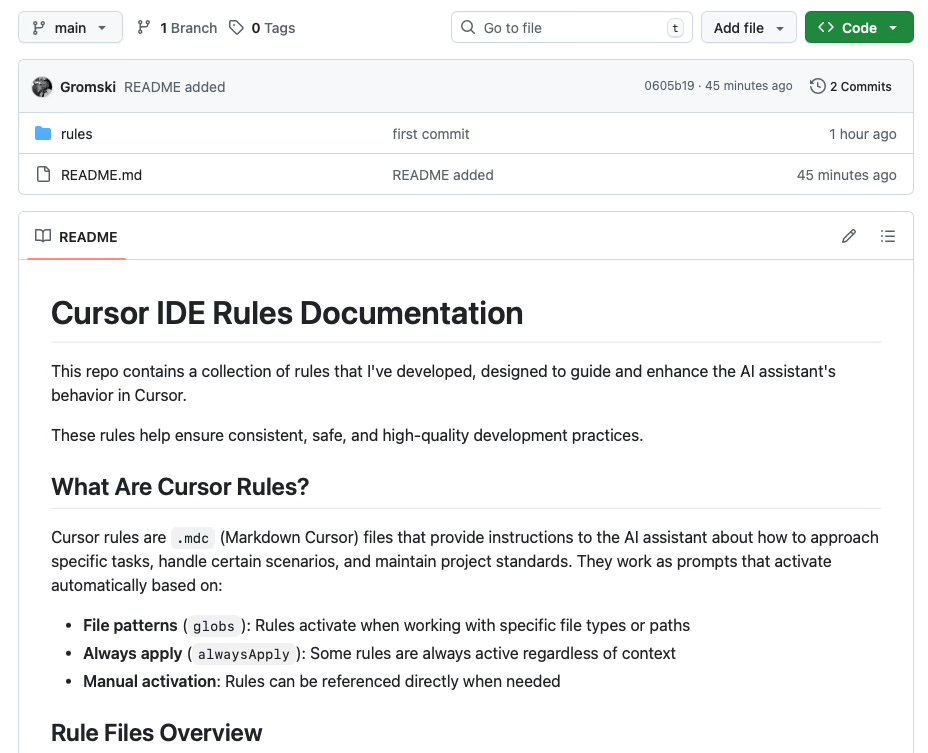
Getting the rules: All these rules are available on GitHub. You’ll see the full Markdown files, exactly as I use them. They’re free to use and adapt for your own projects - just change the extension from .mdc to .md if you’re not using Cursor. I’ll link to each specific rule as we go through them.
For now, understanding how they work and why you need them is more important than the exact implementation details. But if you want to start building your own rules immediately, the structure is simple: create a Markdown file with clear instructions for the AI, specify when it should apply, and reference the documentation it should consult.
The Implementation Plan Generator
This is the engine that powers everything. See the full rule on GitHub.
The Implementation Plan Generator takes your PRD and explodes it into a complete documentation structure. It doesn’t just give you a task list. It maps every page users will see, every piece of data you’ll store, and how everything connects together.
How to use it across platforms:
Cursor/Replit/Bolt: This rule runs automatically when you reference your PRD
Claude: Upload the rule file and your PRD, then say: “Follow the Implementation Plan Generator rule to analyze this PRD and create the documentation structure”
Here’s what happens when you point it at a PRD:
The Analysis Phase
The rule forces the AI to read your entire PRD thoroughly. No skimming. It extracts every feature, identifies every page users will see, maps all the data you’ll need to store and how it connects.
It sorts features into must-have, should-have, nice-to-have. This matters because you’ll build in that order.
The Documentation Explosion
Once analysis is complete, your docs folder fills up with structured documentation:
implementation.md - Your staged build plan with checkboxes
project_structure.md - Where files should live and how to organise them
uiux_doc.md - Design system and how users move through your app
data_model.md - Complete picture of what data you’ll store
api_specifications.md - How your frontend and backend talk to each other (documented in detail)
Then it creates subdirectories:
/frontend/pages/ - Individual specs for every page users see
/frontend/shared_components/ - Specs for navigation, headers, reusable elements
/backend/entities/ - Full details for every type of data (users, posts, comments, etc.)
/backend/api_endpoints/ - Documentation for every way data moves between frontend and backend
Why This Matters
You’re not guessing anymore. Every page has a specification. Every piece of data you’ll store has complete details documented. Every way your frontend and backend communicate is mapped out before you write a single line of code.
The AI researches and recommends your technology choices. It provides links to official documentation. It breaks the build into six logical stages with realistic time estimates.
Most importantly, everything connects. Frontend pages reference the data they need. Backend specifications map to your data models. The project structure supports all the requirements.
Why Smaller Documents Matter
Your PRD might be 10,000 words of vision, user stories, feature descriptions, and business logic. Every time the AI reads it, that’s slow and expensive. Every time it tries to extract “what should the login page do?” from a sprawling document, it’s doing unnecessary work.
The Implementation Plan Generator breaks that down into focused, single-purpose documents.
Need to build the user profile page? Read docs/frontend/pages/user_profile.md. It’s 200 lines. Everything you need. Nothing you don’t.
Need to work on user data? Read docs/backend/entities/user.md. The structure is there. What fields you need. Validation rules. How users connect to other data. No wading through paragraphs about your company’s vision.
Human Navigation Matters Too
You’re not just optimising for the AI. You’re optimising for yourself.
When you’re three weeks into a build and need to remember “what information should I collect about comments?”, you don’t want to search through a massive PRD. You open comment.md. It’s right there.
When the AI suggests a change that doesn’t match your original plan, you can quickly check the relevant spec. You can update it. You can tell the AI “look at this specific document, not the whole PRD.”
Living Documentation
Here’s where it gets interesting. These documents evolve.
You realise halfway through that users need profile pictures? Update user.md. The AI references that document, not the PRD. Your work stays in sync with your current understanding, not your original vision.
The PRD becomes a historical artefact. The documentation becomes your source of truth.
This is why the structure matters. Smaller, focused documents. Easier to read. Easier to update. Cheaper to process. Better for both human and AI.
The Core Development Workflow
Once you start building, there’s one ruleset that runs in every chat: the Core Development Workflow.
Platform note: On Cursor, Replit, and Bolt, set this rule to “always apply” so it runs automatically. On Claude, start each development chat with: “Follow the Core Development Workflow for this task.”
The Consistency Problem
AIs are fundamentally unreliable. Same prompt, different day, different response. Sometimes it writes clean code. Sometimes it rewrites your entire page when you asked for a button colour change.
This randomness is built into how these models work. You can’t fix it. But you can constrain it.
The Guardrails
The Core Development Workflow runs on every single chat. It tells the AI exactly what to do before it writes a single line of code.
Before any development action, the AI must:
Check implementation.md first for what stage you’re at, what tasks are available, what needs to happen first
Verify the task matches what’s documented
Check all prerequisites are met
Only then start working
This stops the AI from going rogue. It can’t decide to rebuild your entire login system when you asked for a password reset button. It has to check the docs. It has to verify what it’s supposed to be doing.
Simple vs Complex Tasks
The rule makes a critical distinction:
Simple tasks - Single file changes, settings updates, minor fixes. The AI works on these directly after checking docs.
Complex tasks - Changes across multiple files, new features, major changes to how things work. The AI must create a detailed todo list before writing any code.
This matters because complex tasks are where AIs go off the rails. They start implementing, realise they need something else, pivot mid-way, leave things half-finished. The todo list forces them to think first.
The Prohibitions
The rule explicitly forbids common AI mistakes:
Skip documentation (because it’s faster)
Implement without understanding scope (because it assumes)
Mark tasks complete prematurely (because it’s optimistic)
Ignore dependencies (because it doesn’t see the connections)
Why This Works
You’re not trying to make the AI smarter. You’re making it more predictable. Every time it acts, it follows the same checklist. It consults the same documents. It verifies the same criteria.
Randomness still exists. But now it’s operating within much tighter bounds. You get variation in how it builds things, not what it builds or when.
The Specialist Rules
The remaining rules are workflow-specific. They activate based on file types or specific situations.
UI Implementation
Full rule on GitHub
Triggers: Frontend files (React, Vue, Svelte) or anything in the components folder
This rule prevents the AI from implementing any UI without consulting the design documentation first.
Before any UI work, it must check:
/docs/uiux_doc.md - Overall design system
/docs/frontend/pages/[page_name].md - Specific page requirements
/docs/frontend/shared_components/[component].md - Component specs
It enforces responsive design at three screen sizes (mobile, tablet, desktop)—meaning your app looks good on phones, tablets, and computers. It mandates accessibility standards. It requires proper labels for screen readers, keyboard navigation support, and sufficient colour contrast for readability.
The rule stops the AI from:
Inventing its own colours and fonts
Skipping mobile layouts
Forgetting accessibility features
Breaking the way you’ve structured your UI elements
Every UI element must match documented specifications. No exceptions.
Bug Tracking Rules
Full rule on GitHub
Triggers: Bug tracking document or error log files
This rule mandates that every error gets documented before it gets fixed.
Before fixing any bug, the AI must:
Check bug_tracking.md for similar issues
Search for related error messages and solutions
Verify this isn’t a regression (a bug that was already fixed but came back)
Every bug entry includes:
Sequential number (Bug #1, Bug #2, etc.)
Complete error messages and technical details
Steps to reproduce the problem
Root cause (what actually caused it)
Solution applied
Files changed
Testing performed
How to prevent it happening again
Critical rule: only humans can mark bugs as “Verified”. The AI can only mark them “Resolved” after implementing a fix.
This prevents bugs from being forgotten. It stops the same issue from being “fixed” three times in three different ways. It creates institutional knowledge.
Bug Squash Protocol
Full rule on GitHub
Triggers: Manual activation when standard fixes fail
This is the nuclear option. When a bug has taken too many attempts to fix, you activate this rule.
It forces a systematic, evidence-based approach:
Phase 0: Reconnaissance - Look at everything without changing anything Phase 1: Isolate the Problem - Create a simple test that reliably triggers the bug Phase 2: Root Cause Analysis - Form a theory, test it, gather proof Phase 3: Fix It - Design a minimal, precise solution Phase 4: Verify - Prove the fix works without creating new problems Phase 5: Self-Audit - Double-check everything with fresh eyes Phase 6: Final Report - Write up what happened and how it was solved
The rule explicitly forbids:
Applying fixes without confirmed root cause
Retrying previously failed fixes
Patching symptoms without understanding why
This rule exists because AIs love quick fixes. They’ll add safety checks without asking why something broke in the first place. They’ll hide errors without investigating what caused them. Bug Squash forces them to dig deeper.
Terminal Safety
Full rule on GitHub
Triggers: Command files and system settings
This rule prevents commands that hang or break your development environment.
It provides specific patterns for:
Limiting output (show only 20 lines by default)
Running processes in the background
Adding timeouts to prevent hanging
Cleaning up stuck processes
It stops the AI from running risky commands without safeguards:
Development servers (without running them in the background)
Long-running processes (like file watchers)
Commands that wait for user input
For every risky command, it provides a safe alternative. Start servers in background. Add output limits to builds. Use timeouts for network requests.
The emergency procedures include:
How to stop processes that won’t quit
Cleaning up stuck processes
Force closing applications
Managing background tasks
This rule exists because one stuck command can freeze your entire Cursor session. Terminal safety prevents your development environment from crashing.
Documentation Reference
Full rule on GitHub
Triggers: Any work in the docs folder or with documentation files
This rule establishes the documentation hierarchy. It tells the AI which documents to check and in what order:
Bug Tracking (first priority) - Check before any bug fix
Implementation Guide (primary reference) - Check before any development task
Project Structure (structural guidance) - Check before any structural changes
UI/UX Specifications (design compliance) - Check before any UI work
It mandates:
Never skip documentation consultation
Never assume you know requirements without checking
Never implement UI without checking design specs
Never fix bugs without checking known issues first
Always follow the hierarchy order
Always read linked documentation completely
Always update documentation when making changes
This rule exists because AIs are optimistic. They assume they know what you want. They skip steps to move faster. Documentation Reference forces them to slow down and check first.
How They Work Together
These rules form a system. They reinforce each other.
The Core Development Workflow ensures consistency across all tasks. It references the other rules when appropriate.
UI Implementation enforces design compliance. It checks Documentation Reference for specs. It updates Bug Tracking when issues arise.
Bug Tracking prevents repeated mistakes. It informs Bug Squash when nuclear options are needed. It feeds back into Core Development Workflow for context.
Terminal Safety keeps your environment stable. It prevents the hang-ups that would otherwise break your flow.
Documentation Reference ties everything together. It’s the connective tissue. Every rule refers to documentation. This rule tells them where to look and what to prioritise.
What Happens When You Build
With all rules in place, you’re ready to build.
On Cursor, Replit, or Bolt: Open a new chat. Tell the AI which task from implementation.md you want to tackle. The Core Development Workflow kicks in automatically.
On Claude: Start a new chat and say: “I want to work on [task name] from implementation.md. Follow the Core Development Workflow.” Then upload or reference the relevant documentation files.
The AI reads the implementation doc. It checks what needs to be done first. It verifies what it’s supposed to build. It reads the relevant specifications.
If it’s a UI task, UI Implementation activates (automatically on some platforms, by instruction on Claude). The AI checks design specs. It builds with proper responsive behaviour and accessibility features.
If it hits a bug, Bug Tracking takes over. The AI documents the error. It checks for similar problems. It applies a fix and updates the bug log.
If you need to run commands, Terminal Safety ensures they won’t freeze. Output gets limited. Processes run in background. Your environment stays stable.
Every action follows the same pattern. Check documentation. Verify what you’re building. Build it correctly. Document what changed.
The AI becomes predictable. Not because it’s smarter. Because it’s constrained. Guided. Forced to follow a workflow that works.
The Reality
This system isn’t perfect. AIs still make mistakes. They still misunderstand requirements. They still write code that doesn’t quite work.
But the mistakes are smaller. More contained. Easier to fix.
When something goes wrong, you have documentation to reference. You have bug tracking to prevent repeats. You have rules that ensure the next attempt follows a better process.
The system makes vibe-coding viable. Not by making the AI infallible. By making it consistent enough that you can work with it productively.
That’s the real lesson. You don’t need perfect AI. You need constrained AI. AI with guardrails. AI that follows a process.
The rules are the guardrails. The documentation is the process. Together, they turn unreliable AI into a productive development partner.
Next time: I’ll show you an actual build session. Real PRD. Real code. Real prompts. Real mistakes. Real fixes. You’ll see exactly what vibe-coding looks like in practice—not just the theory, but the messy reality of building with AI.